Why Trust AllQbanks? We help thousands of IMGs and Canadian medical students prepare for the MCCQE every year. Our study guides are verified against official MCC objectives and informed by proprietary performance data from our 5,200+ question testing platform. Read our Editorial Policy.
The MCCQE Part 1 is 230 consecutive clinical decisions across 5.5 hours. Students who fail aren't usually the ones who don't know medicine — they're the ones whose performance collapses in the final 50 questions because they never trained for sustained cognitive load.
Doing questions in comfortable 30-question sets doesn't prepare you for maintaining clinical reasoning at question #200 when your brain is exhausted. Simulation training does.
The AllQbanks Simulation Environment
Our simulation platform replicates the actual MCCQE Part 1 testing experience. The more similar your practice environment is to the real exam, the better your performance transfers to test day.
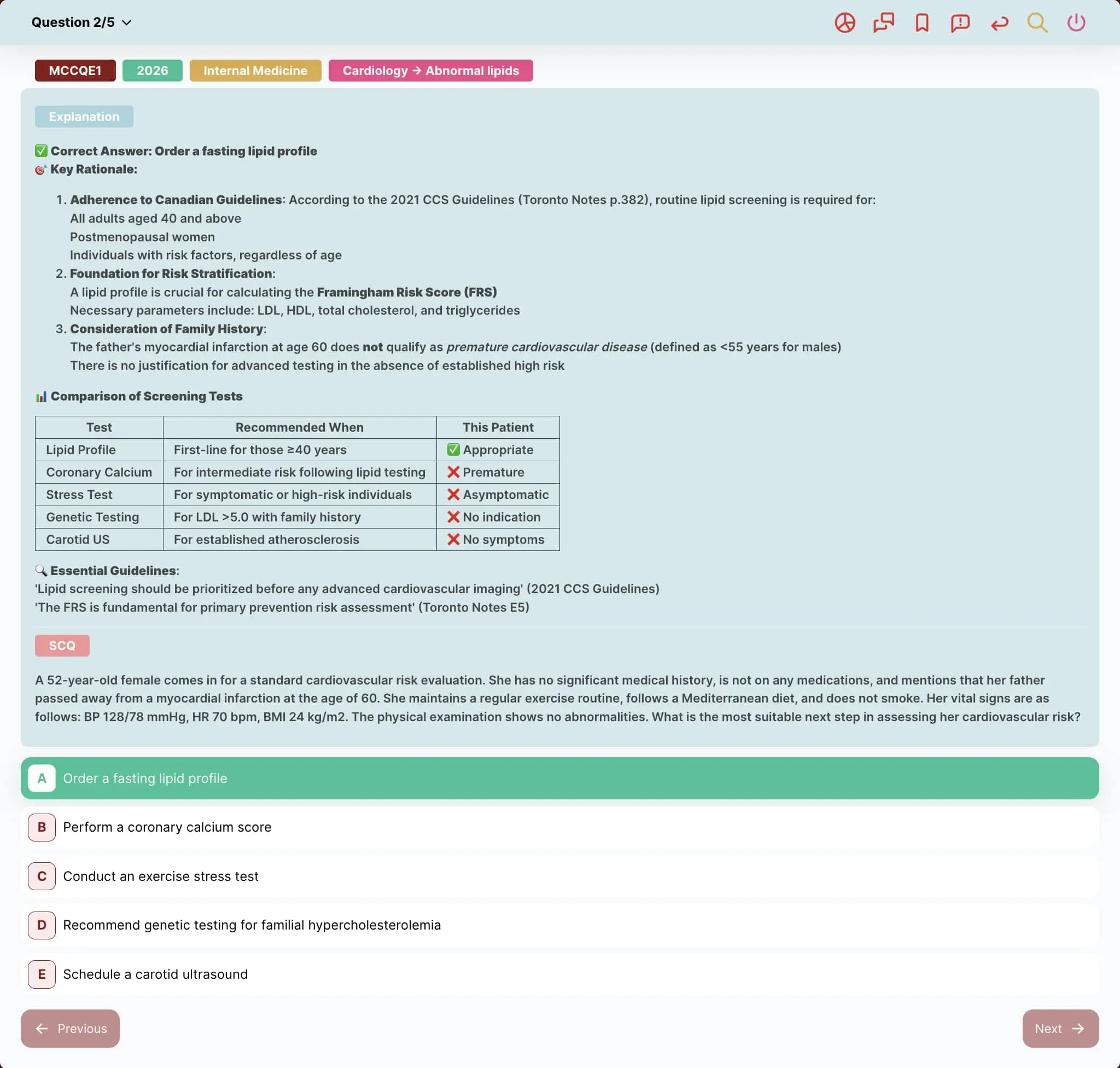
Prometric-Style Interface
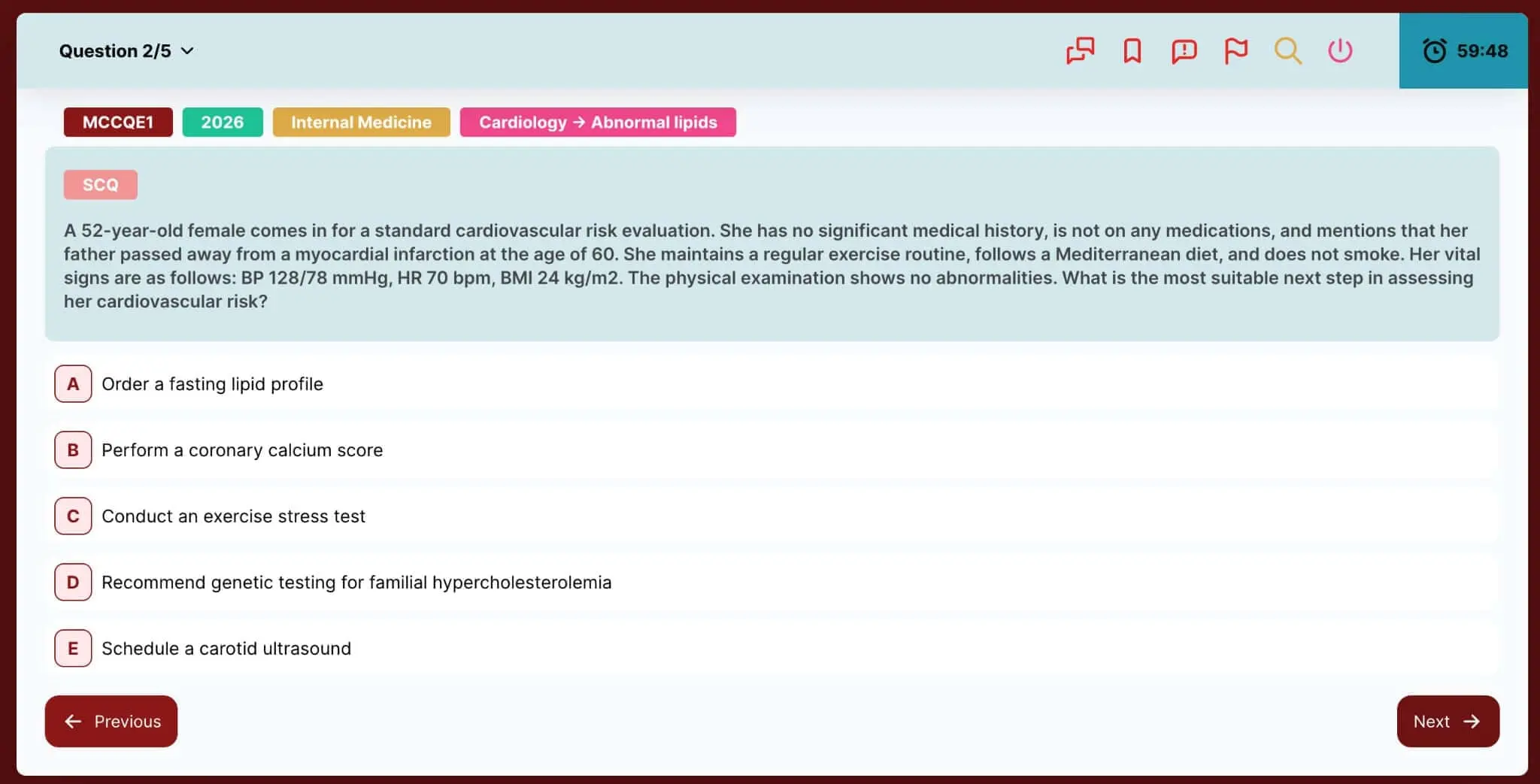
The interface mirrors Prometric's design: vignette on left, answers on right, question counter, timer, and bookmark/flag functionality matching the real exam. On test day, the interface feels like just another practice session — not something you need to figure out while anxious.
Configurable Session Parameters
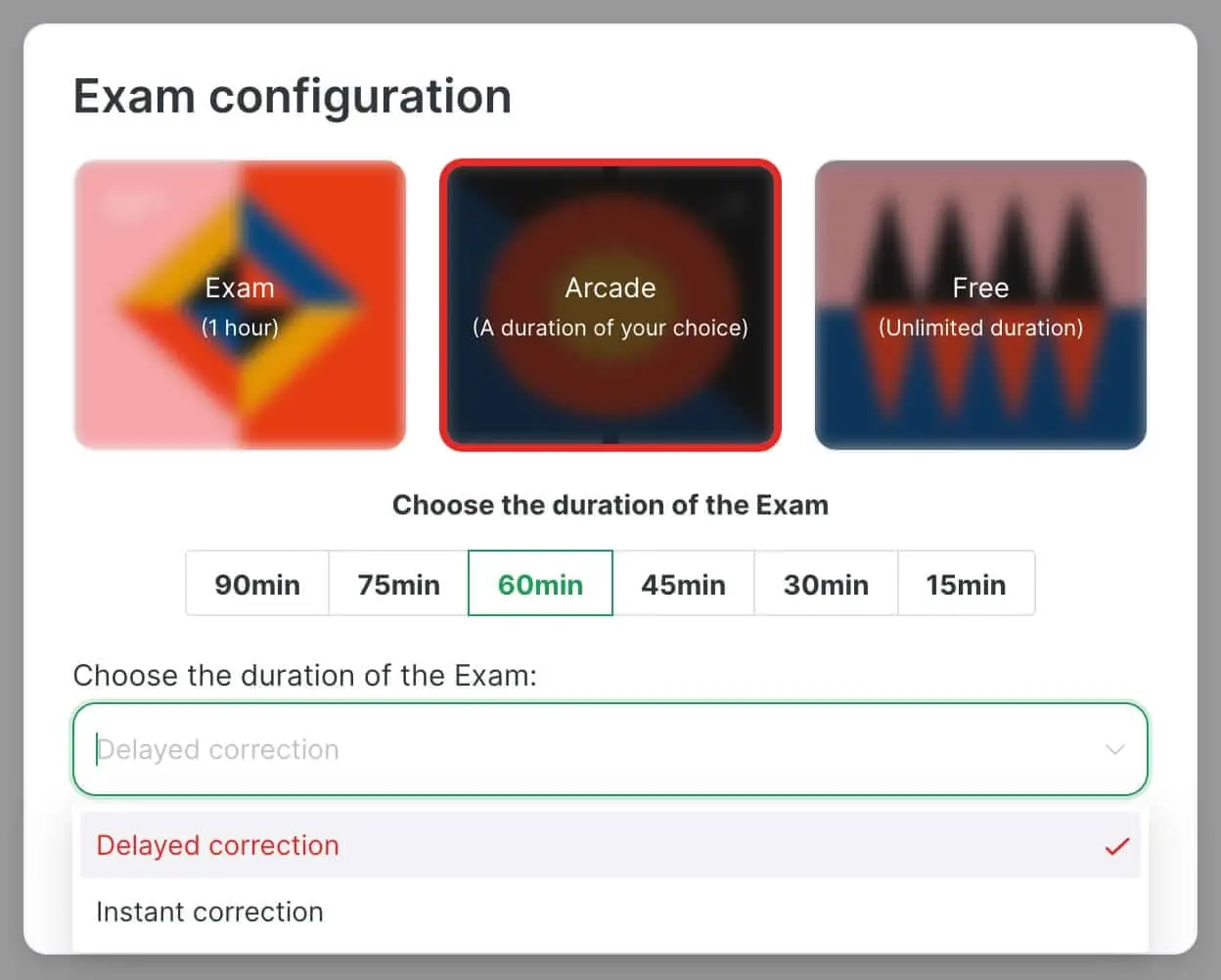
| Parameter | Options |
|---|---|
| Questions | 50–75 (stamina builder), 115 (half-exam), 230 (full exam with break) |
| Subjects | Random mix, weighted toward weak areas via exam builder, or pure subject drills |
| Timer | Timed (160 min / 115 Qs, matching real exam), untimed, or custom |
| Correction mode | Instant (see answers immediately) or Delayed (no feedback until session complete) |
For genuine exam simulation: 115 questions, random mix, 160 minutes, delayed correction. That's your marathon training.
Delayed Correction Mode: Why It Matters
In Delayed Correction Mode, you answer all questions with no feedback on whether you're correct. The timer runs continuously. You submit the entire session before seeing any results.
This is uncomfortable. That's the point.
The real MCCQE doesn't tell you if question #47 was right before you start question #48. You have to make decisions under uncertainty, avoid dwelling, and keep moving. Students who only practice in Instant Correction Mode get dependent on the immediate feedback loop — and psychologically struggle on test day when it's gone.
| Mode | Use When |
|---|---|
| Instant Correction | Learning new material, reviewing mistakes, scoring below 60% |
| Delayed Correction | Simulating exam conditions, testing mastery, within 6–8 weeks of exam, scoring above 65% |
How to Use Simulations Across Your Prep Timeline
| Phase | Simulation Approach |
|---|---|
| Weeks 1–2 | Take one diagnostic full-length (230 Qs, timed, delayed). Expect 50–60%. This is your baseline. |
| Weeks 3–12 | Weekly half-exam simulations (115 Qs, timed). Use results to guide targeted practice during the week. |
| Final 4 weeks | Weekly full-length simulations (230 Qs with lunch break). Mirror test day: same time, no phone, same food. |
| Final week | One light 50–75 question session on strong topics. Taper, don't grind. |
For a detailed week-by-week study schedule, see our 3-month study plan.
Reviewing Results: Where the Learning Happens
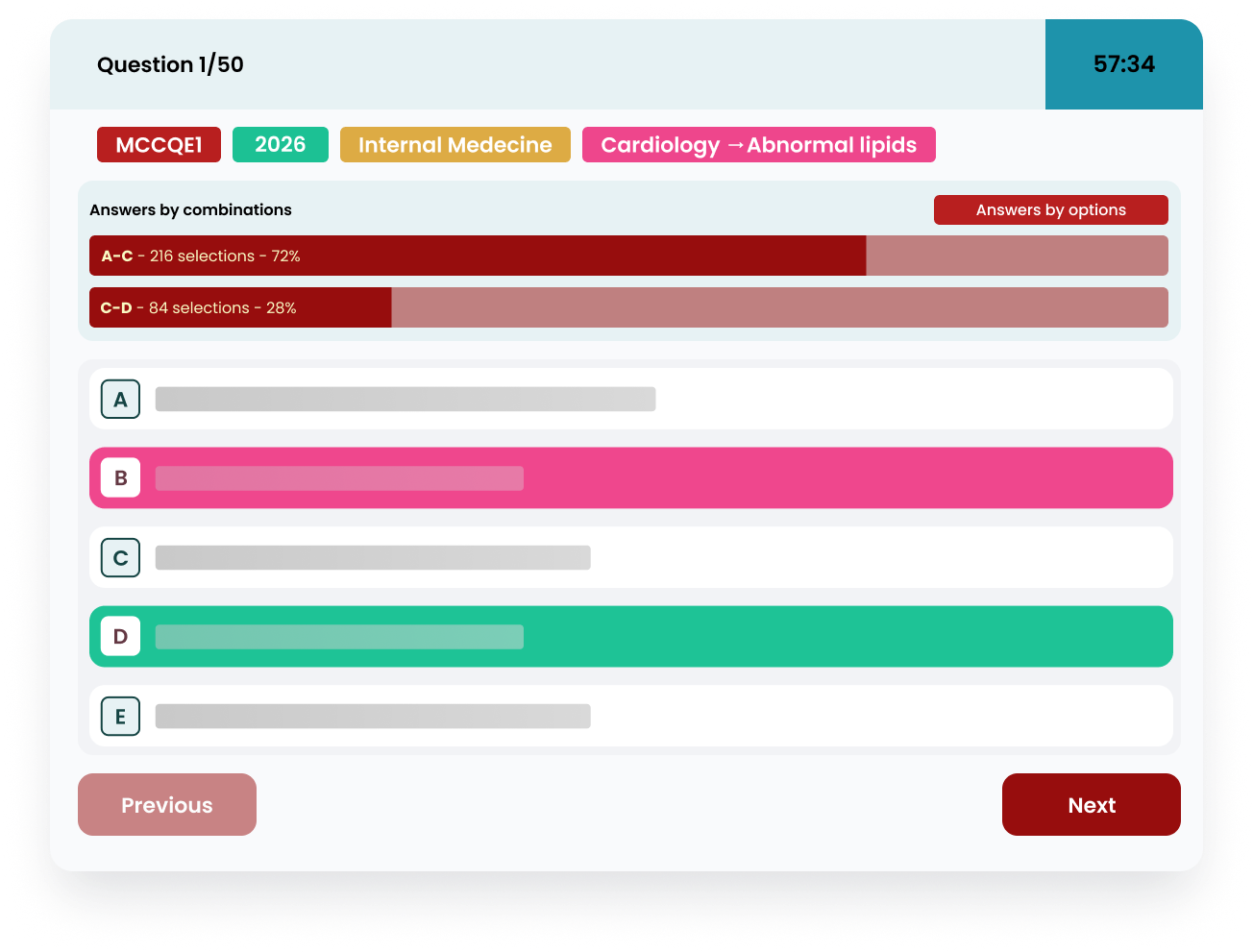
After each simulation, you get performance breakdowns by subject, by question number range, and against other users.
What to look for
- Performance by question range: If you're strong through question #80 but accuracy drops sharply after, that's your endurance ceiling. You need more simulation practice to push it higher.
- Peer comparison: If 85% of users got a question right and you missed it, that's a high-yield concept requiring immediate review. If only 25% got it right, it's a hard question — lower priority.
- Subject breakdowns: Identify persistent weak areas and attack them with the exam builder between simulations.
Prioritize your review
Don't review every question equally:
- Questions you got wrong but felt confident about — dangerous knowledge gaps
- Questions you got wrong and were unsure about — confirmed weaknesses, target with focused drills
- Questions you got right but guessed — luck, not knowledge
- Questions you got right confidently — skim to confirm your reasoning was sound
Don't review immediately after finishing. You're cognitively depleted. Wait 2–3 hours or review the next morning when fresh.
Common Mistakes
- Only using Instant Correction Mode — transition to Delayed once you're above 65%
- Taking simulations too frequently — space them 4–7 days apart with targeted study between
- Not simulating the full experience — 230 questions across two days with phone breaks isn't a simulation
- Skipping review — the simulation is half the work; the review is where growth happens
- Not tracking trends — one score tells you little, but a trend across 4–6 simulations tells you everything
The MCCQE Part 1 tests your ability to make clinical decisions while exhausted and uncertain. Simulations are how you train for that specific demand. Use them throughout your preparation, push through the discomfort, and build the stamina to perform at question #230 as well as question #1.
Related Posts
 mccqeupdates
MCCQE Part 1 Exam Dates 2026-2027: All Sessions
All 8 MCCQE Part 1 exam sessions for 2026-2027 with registration windows, costs (CAD $1,500), result dates, and scheduling tips. Updated June 2026.
AllQbanks Team •
Jun 25, 2026
 mccqe
mccqeMCCQE OBGYN High Yield: Study Cheat Sheet
Master the high-yield obstetrics and gynecology concepts on the MCCQE. Study SOGC guidelines, preeclampsia, and postpartum hemorrhage.
Dr. Leila Haddad •
Jul 18, 2026